Release 7.5, 7/2020

New Features and Enhancements - Releases 7.5 and 7.5.1

Release 7.6 is also available at this time: click What's New in Release 7.6.

A summary of enhancements made in updates since Release 7.5 is also included in this document.

Our development team is in the process of making Premier ERP browser-independent. We hope to release this feature later in the year. The development work is being done across multiple releases, with the goal of minimizing disruption to our users' organizations. This work has been tested extensively across all areas in the system.  However, we recently discovered that three (3) Quick Click panels do not function with the changes as expected.  For example, one of the problem panels is the Quick Click for Purchase Orders for Matching.

As a result, these panels will not currently return search results.  This issue will be corrected in the next available update.  We apologize for any inconvenience this may cause.

ERP Materials Management and Financials

Sourcing and Contract Management (SCM)

Administration

Reports

ERP/SCM Problem Resolutions

ERP Materials Management and Financials Enhancements - This Release: 7.5

  Several fields have been added to the vendor record audit table to make tracing changes to vendor records easier.

A list of the fields that are now audited is in Appendix A. The location of audit panels in ERP is:

  • For vendors: main Contents > Vendors > Vendors > Menu > View Audit Info
  • For AP locations: main Contents > Vendors > Vendors > Menu > AP Locations > Menu > View Audit Info
  • For buy-from locations: main Contents > Vendors > Vendors > Menu > Buy From Locations > Menu > View Audit Info

  ERP Mobile: A user’s ability to open Requisitions on the Mobile table of contents is controlled by the role object “Requisitions.”

This role object must be set to Modify, at minimum, for a mobile user to work with requisitions. This feature provides security consistent with that on the ERP server version.

  Improvements have been made to the process of adding hospital accounts to vendor records.

Users adding asset location or department vendor accounts for one organization had to back out to the Welcome Page, and change the organization in Current Settings if they wished to add another account for a different organization. An enhancement has eliminated this awkward process.

To set up vendor hospital accounts for an asset location,

  1. From the main Materials or AP Contents, select Vendors > Vendors.
  2. On the Quick Click menu, under "I would like to..." select Buy From Locations. (You can also select Buy From Locations from the Menu next to a vendor on the Vendor List.)
  3. Enter the vendor number in the box under Vendor No... and click Go.
    The Buy From Location list appears. Locate the buy-from location of interest.
  4. Click the edit icon. The buy-from location record opens.
  5. Click the tab Asset Location Hospital Accounts.
    If any accounts already exist for asset locations (or departments, if you are working with those) at the buy-from location, a list appears. Figure 1 is an example for asset locations. Otherwise, you see No Data.

Asset Location Account Information for a Vendor Buy-From Location

  1. Click New.
    The edit panel appears (Figure 2).

Add an Asset Location Account for a Vendor Buy-From Location

Materials Management main Contents > Vendors > Vendors > Quick Click, locate buy-from location > Asset Location Hospital Accounts

The Organization field defaults from your current settings, but you can click the ellipse (...) to change it.

  1. Change the Organization, if needed. It is a required field.
  2. Select the Asset Location and enter the Hospital Account Number. Both fields are required.
  3. Click Save, or press Enter. The new account is saved.
    The page remains open with the latest Organization and Asset Location values entered (sticky fields).
    You can edit either field for the next account, and enter a new Hospital Account Number.
    This process allows you to enter multiple hospital account numbers for different organizations and asset locations, without having to keep clicking New from the list.
  4. When you finish entering account numbers, click X in the upper right, or click Close.
    ERP returns to the Asset Location Hospital Accounts list.
  5. Click Refresh to display the new accounts on the list.

To set up vendor hospital accounts for a department

The process of setting up hospital accounts for a department is similar to setting up accounts for an asset location.

  1. Open the list of buy-from locations for a vendor, as described previously (for an asset location account).
  2. Locate the buy-from location of interest.
  3. Click the edit icon. The buy-from location record opens.
  4. Click the tab Department Hospital Account.
    If any accounts already exist for departments, at the buy-from location, a list appears. Otherwise, you see No Data.
  5. Click New. The edit panel appears (Figure 3).

Add a Department Account for a Vendor Buy-From Location

Materials Management main Contents > Vendors > Vendors > Quick Click, locate buy-from location > Department Hospital Accounts


  1. Change the Organization, if needed. It is a required field.
  2. Select the Department and enter the Hospital Account Number. Both fields are required. The Deliver To Location field is optional.
  3. Click Save, or press Enter. The new account is saved.
    The page remains open with the latest Organization and Department values entered (sticky fields).
    You can edit either field for the next account, and enter a new Hospital Account Number.
    This process allows you to enter multiple hospital account numbers for different organizations and departments, without having to keep clicking New from the list.
  4. When you finish entering account numbers, click X in the upper right, or click Close.
    ERP returns to the Department Hospital Accounts list.
  5. Click Refresh to display the new accounts on the list.

Requisitioners can update the Commodity Code on a non-file requisition line for a requisition that has been rejected.

For sites who use commodity codes to drive approval routing, the need to change incorrect commodity codes on non-file requisitions is addressed by this enhancement.

When a requisition containing a non-file line is rejected by an approver because of an incorrect commodity code,, the requisitioner can now correct the commodity code, and resubmit the requisition for approval re-routing. This enhancement avoids having to create a new requisition when only the Commodity Code is incorrect.

- Use of this enhancement requires a flag to be set for the site. Contact the Help Desk if you wish to use this new feature.

- Corrections/changes to the commodity code on the requisition are audited.

- To change an incorrect Commodity Code on a rejected requisition:

  1. Locate the rejected requisition on the Requisitions list.
  2. Edit the requisition.
  3. Edit the non-file line.
  4. Change the Commodity Code  to the correct value (Figure 4).

Correcting the Commodity Code on a Rejected Requisition

Materials Management main Contents > Requisitioning > Requisitions - All Depts (or Current Dept) > Edit

Updating the Commodity Code on any non-file line on a requisition changes the Commodity Code in all non-file lines included in the requisition.

When you change a commodity code for one non-file item on a requisition, ERP makes the change for all the non-file items on the requisition. However, if the requisition contains file lines, an error message (Figure 5) appears, because file item commodity codes are not allowed to be changed.

Error Message on a Requisition with File Items when Commodity Code is Changed


  1. Click Submit to resend the requisition for approval. The submitted requisition is routed to the appropriate approver or approver group based on the new commodity code. Changes to the commodity are audited.
    Important: The commodity code update feature must be enabled for your site. Contact the Help Desk if you need to use this feature.

 Journal voucher import error reporting now includes more extensive information.

Journal voucher import users need a quick way to determine if errors in an import require a new import, or whether the errors can be manually fixed. Fields on JV imports panels display import errors at the header and line level. When a file imports with errors, It may be possible to fix the errors from within the system and reprocess the file. (Otherwise, you will need to edit the local file, and re-upload it.)

  • From the General Ledger main Contents, select Import/Exports > Journal Voucher Imports.

Locate the imported file on the Journal Vouchers Import list. For the file, the Import Status is "Ready for Processing" and the Message column is "Incomplete."
The list displays the View Errors link and the column ImportErrors. The Import Errors column displays the top error for each Import ID.

  1. To view all errors for all journal vouchers for the Import ID, click View Errors. Figure 6 is an example.

The View Error Link and the Import Errors Column on the JV Imports List

General Ledger main Contents > Import/Exports > Journal Voucher Imports

ERP displays the All Errors panel for the import (Figure 7). Errors appear on the left. On the right, the Table ID field gives you information about the location of the error: JVI means JV header; JEI means JV detail.
From this information, you can tell if the error is in the import header, or in a detail line, and that may help you decide what is the next action to take.

Drilling Down on View Errors to Display All JV Import Errors for an Import ID

  1. On the Journal Voucher Imports list (Figure 6 or Figure 8), click Menu > View Import Details.

Opening the JV Header Import Details

The application displays the JV Import Voucher Headers panel. The column Import Errors displays the top #1 header error (if any exist) (Figure 9).

  1. To view all errors, click View Errors. You can also review and fix errors.

Displaying JV Import Header Errors

General Ledger main Contents > Import/Exports > Journal Voucher Imports > Menu > View Import Details > View Errors


  1. On the import list next to the file that you just imported, click Menu > View Import Details (Figure 8). The list of JV headers appears (Figure 10).
  1. If errors exist, click the edit icon to see if you can fix them without re-importing the file.

Drilling Down to Header Details

  1. To drill down to lines, click Menu > View Details. The Journal Voucher Import Details panel appears (Figure 11).
  2. Click the edit icon to edit a line and fix the error, if possible. (Otherwise, you will need to correct the import file, and re-load it.)

Drilling Down to Line Details

  1. If you edit any lines or headers to remove errors, be sure to click Save.
  2. Go back to the list of imported JVs and locate the one that you just edited (presumably, at the top of the list).
  3. Click Menu > Reprocess to reprocess the journal voucher so that it completes normally.
    If you have the authority to post journal vouchers and your organization allows auto-posting, the JV will post.

Sourcing and Contract Management - This Release: 7.5

  Error messages now inform you when local SCM contracts do not follow the rules for contract dates, tier dates, and item price dates.

Tier Start/End dates and Item Price Start/End dates must be aligned with Contract Effective Start/End dates for local contracts. This logic applies to both the local single-tier and multi-tier contract template uploads.

An error message occurs for misaligned dates in accepted, unaccepted, or activated local contracts. The error message is: "Updates made to one or more Contract dates are not valid. Please refer to the help to learn about the Date Alignment Rules."

The error message appears when the following dates are changed, and the change violates the alignment rules:

Contract effective dates - Changed manually, by the user, or through the import process.

Tier dates - Changed by importing a contract. (Manual changes on the contract panels are not allowed.)

Item price effective date - Changed by importing a contract. (Manual changes on the contract panels are not allowed.)

If you receive the error message after an import or a manual date change, you must correct the date(s) manually (only contract dates can be manually edited) or re-import the contract with the date(s) corrected.

Here is a summary of the rules for dates in contracts. (This list is in the online documentation as well.)

Contract Dates

  • The Contract Start Date must fall before the Contract End Date.
  • The Contract End Date must fall after the Contract Start Date.

Tier Dates

  • The Tier Start Date must fall on or after the contract's Effective Start Date.
  • The Tier End Date must fall on or before the contract's Effective End Date.
  • The Tier Start Date must fall before the Tier End Date.
  • The Tier End Date must fall after the Tier Start Date.

Item Price Dates

  • An Item Price Start Date must fall before the Item Price End Date.
  • An Item Price Start Date must fall on or after the Tier Start Date.
  • An Item Price End Date must fall on or before the Tier End Date.
  • An Item Price End Date must fall after the Item Price Start Date.
  • The Item Price Start Date must fall on or after the Contract Start Date.
  • The Item Price End Date must fall on or before the Contract End Date.
  • A single item that appears multiple times on a single contract tier cannot have overlapping Price Start/End dates.
  • The Item Price Record must be within the Contract Effective Date range.
  • The Item Price Record must be within the Tier Effective Date range.

Contract Extensions

  • If the Tier End Date is the same as the Contract End Date, then the Tier End Date is automatically extended to align with the new Contract Extension Date once the contract is extended.
  • If the Tier End Date falls before the Contract End Date, then the Tier End Date is not extended along with the Contract End Date.

Administration - This Release 7.5

  Several informational fields are available on the user profile of users who sign in via .

The fields are located on the new  tab of the User Profile (Figure 12).

The  Tab on the User Profile Panel

Administration main Contents > Administration > Users > locate user

The fields are:

Update Status - For a user who accesses ERP/SCM through , this field indicates whether the user’s credentials have been updated (entered) in the Premier's User Management System. (Note: This system is also called CIAM: Customer Identity and Access Management.) Unsuccessful updated display "Failure," for example.

Update Date - The date when the user’s credentials were entered/updated in the User Management System.

Message - Any message related to the update.

Reports - This Release 7.5

  • A new report object – “Requisition Lot Tracking Details” – is available. This report object contains the same fields as the “Requisition Details” report object, with the addition of lot tracking fields. Previously, the “Requisition Details” report object only included lot tracking/patient/case information if the associated requisition was bill only. Users creating requisition reports need lot tracking information for all requisitions.
    See Appendix B for a list of the “Requisition Lot Tracking Details” report object fields. The lot tracking fields are highlighted.

ERP/SCM Problem Resolutions - This Release 7.5

ERP: On the Requisition Imports list, Menu > View Import Details opens a list of imported requisition lines, but any Override Charge Department values on lines do not appear.
This issue has been resolved so that any Override Charge Department values that exist for a line are displayed correctly.

ERP: Copying a check request does successfully copy the AP location address, except for OneTime vendors.

Copying check requests works as designed. Copying a OneTime vendor does not, however, copy the vendor address, also by design, since OneTime vendors are often not “vendors” in the strict sense, and have no AP location address. (Many sites use OneTime for patient refunds.)
Important: When you create (or copy) a check request for a OneTime vendor, you need to complete the address manually, since no address information is retrieved.

ERP: The My Reports link had moved to the left of the page (above the main Table of Contents), and did not function when Auto Hide Menu was enabled. The link has been moved back to the right, and fixed so that it now correctly opens the My Reports Queue panel.
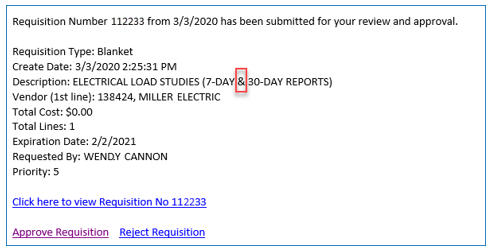
ERP: Requisition/invoice approval emails are sent to approvers with the links Approve Requisition and Reject Requisition at the bottom of the email. A problem occurred when the contents of the email contained  “&” (Figure 13). When the approver clicked Approve or Reject, the underlying approval email was truncated after the symbol, and no approval or rejection was actually occurring.


Email Approval Message with Problematic “&” Symbol in Description

This problem has been fixed so that if an email approval message contains special characters (e.g., “&”), approvers can approve or reject the requisition/invoice using the email links. The complete, correct information, with the approval/rejection, is then returned to ERP.

ERP: Jobs that build 1099 year data were failing almost immediately. The error, only visible on the list Open Batch Jobs, indicated that a vendor with invoices was deleted. The message does not include the Vendor Number, so users could not handle the error.
This problem has been fixed so that appropriate PayingVendorNo is included in the error message when a 1099 job fails because of a missing vendor.

ERP: After turning on the ProSheet batch processing feature, users reported that ProSheet was no longer returning the correct account data values. This problem was traced to processing of summary groups, and has been resolved. Data returned on ProSheet in batch jobs should now be correct.

ERP: A problem with incorrect quantities on a requisition header was preventing a pick from being created.The requisition and its associated PO contained the same item twice. One line was a non-stock item. Both lines were received as stock items. With the invoices, however, one invoice part matched the receipt line. A second invoice matched the original quantity, causing a quantity exception. Clearing the quantity exception updated the quantity on the requisition line but the requisition header totals did not get updated.
This problem was traced to the calculation for the stock item that was not being done. This problem has been resolved so that quantities are correct between the requisition header and the lines.

ERP:  When exporting the list of exception invoices that have been filtered by invoice date and exception type, an error is displayed.
This problem has been resolved so that the incorrect error message no longer appears.

ERP: The application was failing to send email purchase orders to vendors. These purchase orders have a Comm Type of email, and are sent by ERP when authorized.
The problem was traced to buy-from vendor location records where the Contract Location Address contained a number following the at symbol: @. 

For example, an email address such as “ServiceDept@123mail.com” would not process.
This problem has been resolved. Email POs with vendor addresses that contain numbers (or special characters) are sent to vendors as designed.

ERP: Department Allowance limit warnings are not being displayed during the approval process.
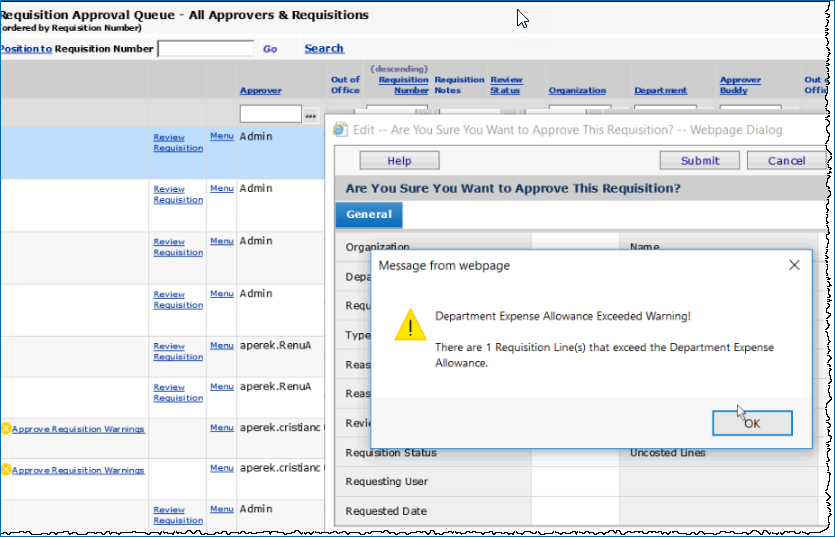
When multiple approvals are required, it is not until the final approval that warning messages appear indicating that the requisition line(s) exceed department allowances. By then, the requisition is approved and the PO is created and available for authorization.  The only way users can see that allowances have been exceeded is by reviewing the requisition Department Allowances tab. But, users have no way of knowing that they need to do that. This problem has been resolved as follows:

When a reviewer opens a requisition that has an exceeded allowance, a warning appears (Figure 14).
-  Click OK to close the warning.

Opening a Requisition for Approval when a Requisition Line Exceeds the Allowance

Materials Management main Contents > Requisitioning > All Approver Queues > Menu > Approve Now

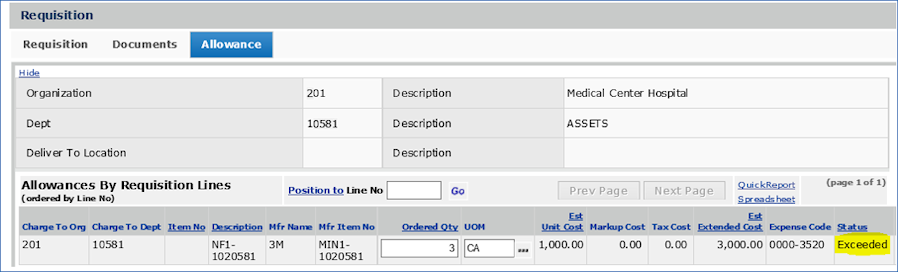
-  Click the Allowance tab.
The Status of a line that is greater than the allowance is Exceeded (Figure 15).

Requisition Line with Exceeded Status for Departmental Allowance Limit

The "Department Expense Allowance Exceeded " warning message appears again.
- Close the warning.
-  If you are authorized to approve requisitions with an exceeded departmental allowance, you can proceed to approve the requisition. Otherwise, you can reject the requisition for rework by its creator.


ERP: Exporting the User Settings (All Columns) to a spreadsheet produced incorrectly formatted values in some columns.
Resolution: The problems were generated from changes in the export. However, the changes need to be retained for a short time for ongoing development. To obtain a correct export, you can use the export as it was before the changes. The “old” export is available in the main menu.

- To export user settings, from the Administration menu, select User Settings Original (All Columns)  (Figure 16).

From there, you can download the list as a spreadsheet template, and the columns and column values will be the same as they
were in the past.

Selecting the “Original” User Settings Panel for Export

SCM: On the "Work with Contract page" Exceptions panel: spend dollars for items appeared as zero, although the spend for the same items on the Savings panel were not zero. SCM-2125 Jennifer-->
- This problem has been resolved. The spend calculation was modified so that the Exceptions panel and the Savings panel show parallel spend amounts.

Enhancements from Updates 7.4.1 to 7.4.4

The following changes to ERP and SCM were covered in previously released Update Notes for each update release.
The changes and problem resolutions below are in summary form. Refer to the particular Update Release Notes for details.

ERP Enhancements

Update 7.4.1

Excel: You can now use Excel, 2016 (64-bit mode) with ERP. Excel add-ins for these features are now available with Excel 2016 in 64-bit mode.

  • Journal voucher imports
  • Item mass maintenance
  • ProSheet for financial reports
  • Budget template

Important for Journal Voucher Imports: If you use the JV 7.03 template add-in and are working in Excel 2016, you will need to upgrade to the 7.04 version of the JV template.  Otherwise, you will get error messages like Figure 17:

JV Error Message for 7.03 Template with Previous Excel Versions

You can download the 7.04 version from: ERP main Contents > General Ledger > Journal Vouchers > Excel JV Template.

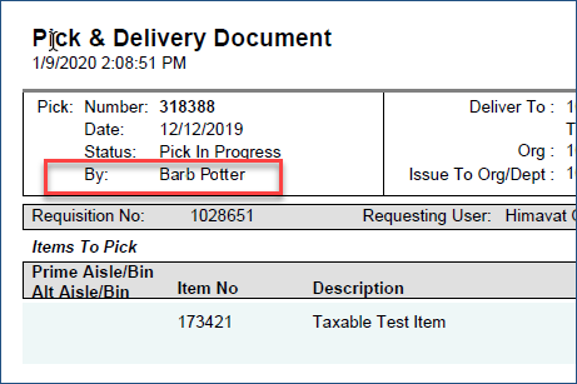
Pick and delivery documents now display the user’s name, instead of the User ID. Here is an example (Figure 18).

Pick and Delivery Document

Update 7.4.2

Reports: A new report object is available: “Invoice Exception Audit (with Department Details).”
This new report object contains all the fields in the “Invoice Exception Audit” report object, with these additional fields, including prompts for the organization and department.

  • PO Authorized Date
  • Department Name
  • Department Number
  • Dept Org name.

Payment run processing performance improvements are in place. These changes should assist users with timely creation and completion of payment runs.

ERP delivery confirmation users, especially Mobile ERP users needed a report to evaluate delivery confirmations.
To meet this need, a new report object "Delivery Confirmations" report object is available.  Below are the fields.


Field Label

Field Name

Data Type

Length

Description

Create User ID

CreateUser

varchar

20

The system User ID of the person who captured delivery data on the mobile device.

Create User Name UserName varchar 20 The user name of the person who captured delivery data on the mobile device.
Del To Loc DelToLoc varchar 3 A deliver-to location for the department.
Dept Name DeptName varchar 50 The department number or a name associated with the delivery.
Issue To Dept IssueToDept varchar 20 The ID of the department receiving the delivery.
Issue To Dept Desc IssueToDeptDesc varchar 50 The name or description of the department.
Issue To Org IssueToOrg varchar 15 The ID of the organization to which delivery was made.
Organization Organization varchar 15 The ID of the organization making the delivery.
Package ID PackageID numeric 15 Any identifier on a package being delivered, such as a UPS number; or for requisition issues, the bar-coded Delivery ID from the pick/delivery document.
Pick No PickNo numeric 15 If the delivery contains items issued from a requisition, the requisition Pick Number.
Piece Count PieceCount varchar 20 The number of individual elements in the delivery. For example, two boxes and two envelopes equals 4 pieces.
PO No PONo varchar 15 The Purchase Order associated with the items being delivered, if relevant.
Receipt No ReceiptNo varchar 15 For delivered items that have receipts, the system's Receipt Number.
Signature Date SignatureDate datetime 23 The date when the signature was captured. The signature and date confirm the delivery.
User ID UserID varchar 20 The User ID of the person creating the report.

SCM and Integrated Platform Catalog Enhancements

Update 7.4.1

Excel 2016 (64-bit mode) is now supported in the Contract Upload add-in.
The contract upload add in lets you upload single- and multi-tier contracts to SCM.

Revised messages for expired/expiring contracts.
You may have set alerts or email messages to notify you when a supply contract is expiring.  The new messages are below. (Note: “Entity” in the messages was previously “supplier.”)
- No entity associated with the contract
Expiring:
Contract "Contract No" ("Contract Description") with Unidentified Entity will expire in "n" days.
Expired:
Contract "Contract No" ("Contract Description") with Unidentified Entity has expired. An automated request has been submitted to deactivate all items for this contract.
- Multiple entities, either all are identified, or some are not identified
Expiring:
Contract "Contract No" ("Contract Description") with Multiple Entities will expire in "n" days.
Expired:
Contract "Contract No" ("Contract Description") with Multiple Entities has expired. An automated request has been submitted to deactivate all items for this contract.

Update 7.4.4

When incentives recalculate (due to a change in the incentive detail, a new timeframe for display, or other reason), a message appears that tells you that recalculation is occurring. For example, in Figure 19, a user has changed the incentive percent from 2.00 to 2.20 (green box, lower left). A message indicates that the recalculation job is pending. When the job runs, the message will indicate “running.”
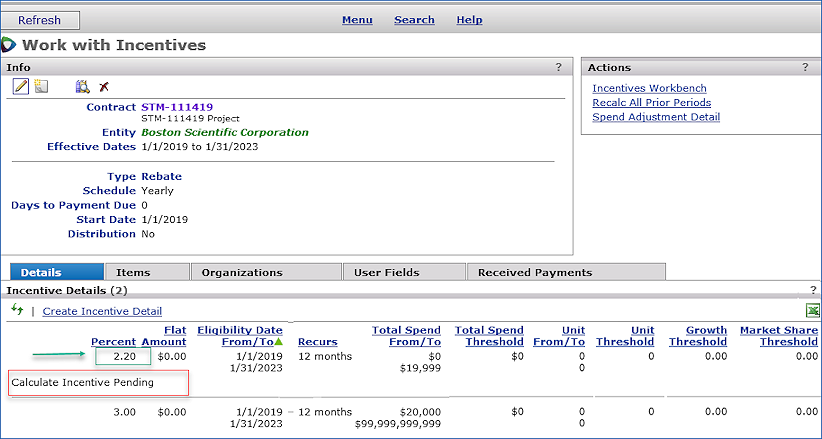
Recalculation Job is Pending.

On the Incentives Workbench  panels, a message also appears (Figure 20 and Figure 21). The time since the incentive amounts were refreshed (i.e., the last recalculation) is in the panel header: in this case, 7 minutes prior. When the recalculation is complete, incentives and amounts are displayed as usual, according to the selected Type filter.
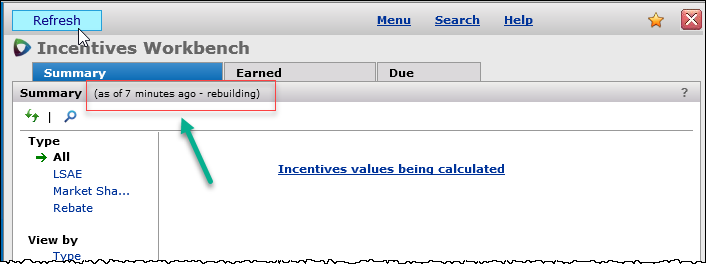
Recalculation Message on the Summary Panel
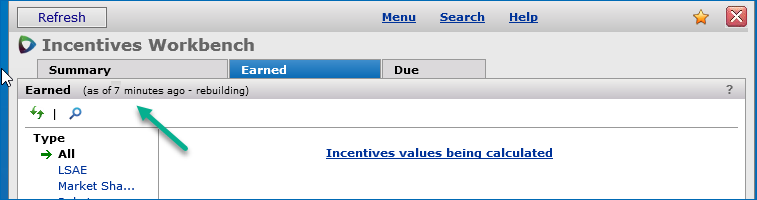
Recalculation Message on the Earned Panel

Expiring contract messages now contain additional information when contract items cannot be deactivated.

Figure 22 is an example of a message for an expiring contract with one manufacturer entity. This is an alert that you would access on SCM from the My Alerts panel. If you had also (or optionally) requested an email alert, the message in the email would be the same.

Notice that for assistance in resolving the problem with deactivating contract items, the alert or email message links directly to the online Help. Click Help for details.
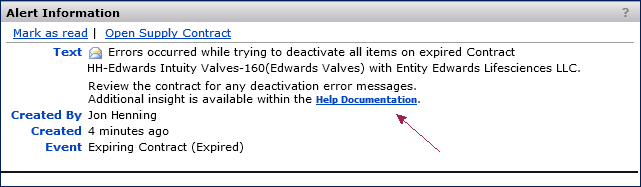
Alert Message for Expiring/Expired Contract: Item Deactivation Problems

Sourcing & Contract Management > Contracts > Contract Workbench > My Alerts > open alert

Depending on the number of manufacturer entities associated with the expiring/expired contract, the message will differ as follows:

Errors occurred while trying to deactivate all items on expired Contract [CONTRACT, OWNER] with Entity [Entity Name]
Review the contract for any deactivation error messages.

-This message occurs when the manufacturer (sometimes labeled "Business Partner") on the contract does not match to the SCM manufacturer entity displayed in [Entity Name]

Errors occurred while trying to deactivate all items on expired Contract [CONTRACT, OWNER] with Unidentified Entity.
Review the contract for any deactivation error messages.

- This message occurs when the manufacturer (sometimes labeled "Business Partner") on the contract does not match to any manufacturer entity in SCM.

Errors occurred while trying to deactivate all items on expired Contract [CONTRACT, OWNER] with Multiple Entities.
Review the contract for any deactivation error messages.

- This message appears when the expired contract has multiple manufacturer entities not associated with any registered manufacturer in SCM.

Problems Resolved in Updates

SCM 7.4.1

 - For contracts synced between SCM and SCA (Integrated Platform), tier price activations were incorrectly set to inactive, with incorrect end dates.
This problem has been resolved with an enhancement to the code logic that handles revisions to activation dates.  Synced contracts should now have the correct activation dates.

- Incorrect Contract Detail lines were created when a contract was uploaded with modifications to the Contract End Dates and Item Price End Date.
The problem occurred when either a new item was added, or an existing item had date changes. The code for the date logic was reviewed and revised so that dates for uploaded contract changes are now accurately represented in SCM contract detail lines.

SCM 7.4.3

- In some circumstances, ERP items were not being revised with the current contract information as contracts were activated (when contract updates were available, for example). 
This problem was traced to an internal code value that affected downstream processing. This problem has been resolved.

- Problems with searches have been resolved.
In vendor searches, the search was failing if the Vendor Location Name in the database was longer than 50 characters.  The length of the search string entered in the Search box did not matter. For example, if a short Vendor Number was entered, but the Vendor Location Name associated with that vendor number was 50+ characters, the search would fail.

This problem has been fixed by setting the internal length of the Vendor Location Name to a larger number of characters. This change should prevent search failures.

- Searching for a contract number on the Supply Contract Workbench Exceptions tab was failing when dashes were included in the contract number.

This problem has been resolved so that contract numbers with dashes now work correctly as search strings.

ERP 7.4.1

- PO credit adjustments that create GL transactions were not updating the Inventory Value on items.  As a result, the “Inventory Valuation Report” did not match the GL account balance for inventory. 
 This problem has been resolved. The mismatch no longer occurs.

- When a quantity exception on an invoice is cleared, ERP updates the requisition ordered quantity. However, when the invoice was deleted, the requisition quantity (which had changed as a result of clearing the exception) was not changed back.
This problem has been resolved so that when an invoice in this situation is deleted, the requisition quantity, and all related transactions update correctly.

- A problem was encountered in matching receipts to EDI 810 invoices. When two receipts matched the 810 detail line, an invoice line was created for the first receipt, matching its quantity, but ignoring the actual quantity on the 810. For example, if 11 cases are ordered on a PO line, and the item is received on two different receipts -- 5 cases on receipt 1 and 6 cases on receipt 2 -- the invoice line was being created for just 5 cases, not 11. This problem has been fixed so that two receipts for a single invoice line are processed correctly with the correct quantities.

- Duplicate lines occurred on a single EDI invoice processed from two EDI invoices with the same invoice number.
The application was incorrectly creating one invoice with duplicate lines. This problem has been resolved so that duplicate lines no longer occur. The resulting single invoice now contains a single matched line.

- The My Reports (Figure 23) link on the Welcome Page border was non-functional and did not open the user's list of reports that had run.
The My Reports link has been fixed, and now goes directly to the user's queue of completed reports.

The My Reports Link on the Welcome Page Margin

ERP 7.4.2

- When a quantity exception was cleared for a non-stock item with “Invoice Correct,” the overage was being added to the associated requisition line as a backorder quantity. The ordered quantity was not updated. As a result, totals on the requisition header were also incorrect.  
This problem has been traced to the process ERP uses to adjust the ordered and backordered quantities on the requisition line when units of measure are different for ordering, receiving, and matching. The problem has been resolved so that totals and the backorder quantity are correct.

ERP 7.4.3

- GL transactions were created without an account number when a receipt for a PO line was canceled and the NonFileTaxableYN was set to “yes.”  
This problem has been  resolved so that in this situation, the correct GL transactions are generated.

ERP 7.4.4

- When deleting an approver group, users received an error that the approver group could not be deleted because check requests for the approver group were pending, even when there were no check requests. This problem has been resolved so that deleting an approver group no longer generates error messages, and proceeds as designed.
- The Vendors Menu would not open when it was listed under My Top 10. Clicking the menu produced no result.
This problem was traced to a minor code inconsistency, and has been resolved. Under My Top 10, the link to the Vendors menu now works as designed.
- In several situations, for the same organization, vendor, and vendor AP location, the vendor’s Current Balance did not match the amount Total for open invoices.
Calculations in the code were revised to resolve this problem so that the two values now match. Also, when the vendor’s Current Balance is zero, the field displays 0.00. The precision for other amounts is two decimal places.

- Single Sign On users encountered an error when using drill-down on populated fields in ProSheet. This problem has been resolved so that drill-down works as designed for SSO access.

- Excel and .pdf output exported from the financial report writer and/or financial report definitions were producing blank files. This situation occurred most commonly when creating Excel or .pdf files from the Preview, but also occurred with financial report definitions. The problem was traced to a URL error, and has been resolved so that report files are now populated in the correct formats.

Appendix A

Fields on vendor records that are now audited.

Vendor Record

DropAPIntegYN
MinorityVendorYN
MinorityCertifiedYN
PreferredStatusYN
FemaleOwnedYN
LocallyOwnedYN
MinCertifiedNo
MinCertifiedFromDate
MinCertifiedToDate
WebPageURL
PriceVerifyYN
APVendorOrg
APRestrictedOrgYN
InvoiceMatchAtReceiptYN
DeletedByUser
DeletedDate
VendorGroupCode
SuspendedByUser
InvcDollarPercentOver
InvcDollarPercentUnder
InvcDollarCapOver
InvcDollarCapUnder
LineDollarPercentOver
LineDollarPercentUnder
LineDollarCapOver
LineDollarCapUnder
CreditOrg
CreditDepartment
CreditExpenseCode
UseSystemTolerancesYN
AllegianceYN
AutoMatchEDIYN
Vendor832ID
TaxID
SecondTINNoticeYN
DftDistProfile
Ten99VendorYN
ExtRefNo
DUNSNo
SmallBusinessYN
InComplianceYN
ItemLookUpType
VendorNoCreateType
AprvNeededDate
RGARequiredYN

Buy from Location Record

Country
SuspendedDate
MinOrderAmt
CustSvcContact
ContactTelNo
DftFreightType
FreightLimit
InvoicingLoc
StateTaxPct
LocalTaxPct
DftAPPayToLoc
PaymentTerms
DiscountTerms
DeletedByUser
DeletedDate
SeparatePOByDeptYN
SuspendedByUser
Vendor832ID
ExtAPVendorNo
VendorOrderCycleCode
MergedYN
MergedByUser
MergedDate
MergedVendorNo
MergedBuyFromLoc
GLNCodeYN
ScheduledJobGroup

AP Location Record

CustSvcContact
ContactTelNo
FaxNumber
Country
InvcDollarPercentOver
InvcDollarPercentUnder
InvcDollarCapOver
InvcDollarCapUnder
LineDollarPercentOver
LineDollarPercentUnder
LineDollarCapOver
LineDollarCapUnder
SuspendedDate
SuspendedByUser
DeletedDate
DeletedByUser
EFTYN
DftRemittanceAdvice
MergedYN
MergedByUser
MergedDate
MergedVendorNo
MergedAPLocation
EmailAddress
FreightTaxYN


Appendix B

Fields for "Requisition Lot Tracking Details" Report Object

Field Label

Field Name

Data Type

Length

Approved Date

ApprovedDate

datetime

23

Aprv Needed Date

AprvNeededDate

datetime

23

Asset Loc

AssetLoc

varchar

15

Capital Project Cross Reference

CapitalProjXref

varchar

20

Case Number

CaseNo

varchar

50

Chrg Alloc Group

ChrgAllocGroup

varchar

15

Chrg Alloc Group Desc

ChrgAllocGroupDesc

varchar

50

Chrg Dept Ovrd

ChrgDeptOvrd

varchar

15

Chrg Org Ovrd

ChrgOrgOvrd

varchar

15

Commodity Code

CommodityCode

varchar

10

Commodity Code Approver Group

CommApproverGroup

varchar

15

Commodity Code Direct Approver

CommDirectApprover

varchar

20

Costing Buyer

CostingBuyer

varchar

20

Create Date

CreateDate

datetime

23

Delivery Schedule

DeliverySchedule

numeric

3

Delivery Schedule Desc

DeliveryScheduleDesc

varchar

50

Dept

Dept

varchar

15

Dept GL Expense

DeptGLExpense

varchar

36

Discount Amt

DiscountAmt

money

19

Discount Pct

DiscountPct

numeric

7

Dollar Limit

DollarLimit

money

19

Expense Code

ExpenseCode

varchar

15

Expense Desc

ExpenseDesc

varchar

50

Ext Cost Plus Tax And Restock

ExtCostPlusTaxAndRestock

numeric

19

Extended Cost

ExtendedCost

money

19

Extended Cost for Issued Qty

cIssuedExtendedCost

numeric

31

Extended Cost Plus Tax

ExtendedCostPlusTax

money

19

Fin Rpt Fld 3

FinRptFld3

varchar

15

Fin Rpt Fld 3 Desc

FinRptFld3Desc

varchar

50

Fnd Fund ID

FinRptFld1

varchar

15

Fnd Fund ID Desc

FinRptFld1Desc

varchar

50

Fund Code

FundCode

varchar

10

Item Approver Group

ItemApproverGroup

varchar

15

Item Direct Approver

ItemDirectApprover

varchar

20

Item GL Asset

ItemGLAsset

varchar

36

Item No

ItemNo

varchar

15

Last Aprv Date

LastAprvDate

datetime

23

Last Aprv User (future use)

LastAprvUser

varchar

20

Last Reject Date

LastRejectDate

datetime

23

Last Reject User (future use)

LastRejectUser

varchar

20

Line Type

LineType

numeric

1

Line Type Desc

LineTypeDesc

varchar

50

Lot Number

LotNo

varchar

40

Markup Cost

MarkupCost

money

19

Order Guide

OrderGuide

varchar

10

Org

Org

varchar

15

Par Cart Cd

ParCartCd

varchar

10

Patient Account Number

PatientAccountNo

varchar

15

Patient ID

PatientID

varchar

15

Payor ID

FinRptFld2

varchar

15

Payor ID Desc

FinRptFld2Desc

varchar

50

Physician No

PhysicianNo

varchar

15

Pick Cycle Code

PickCycleCode

varchar

10

PO No

PONo

varchar

15

PO Organization

POOrg

varchar

15

Priority

Priority

numeric

1

Project Code

ProjectCode

varchar

10

Qty Allocated

cAllocatedQty

numeric

9

Qty Backorder

cBackorderQty

numeric

9

Qty Dropped

DroppedQty

numeric

9

Qty Issued

cIssuedQty

numeric

9

Qty Ordered

cOrderedQty

numeric

9

Reason Code Adj

ReasonCodeAdj

varchar

2

Reason Code Aprv

ReasonCodeAprv

varchar

2

Reason Code Req

ReasonCodeReq

varchar

2

Record Count

RecordCount

int

10

Released Date

ReleasedDate

datetime

23

Req Description

ReqDescription

varchar

50

Req Line Desc

ReqLineDesc

varchar

100

Req Line No

ReqLineNo

numeric

5

Req Org

ReqOrg

varchar

15

Req Source

ReqSource

numeric

1

Req Source Desc

ReqSourceDesc

varchar

50

Req Status

ReqStatus

numeric

1

Req Status Desc

ReqStatusDesc

varchar

50

Req Type

ReqType

numeric

2

Req Type Desc

ReqTypeDesc

varchar

50

Requested Date

RequestedDate

datetime

23

Requesting User

RequestingUser

varchar

20

Requisition Expiration Date

ReqExpirationDate

datetime

23

Requisition No

RequisitionNo

numeric

15

Restock Cost

RestockCost

numeric

17

Restock Fee

RestockFee

numeric

17

Restock Pct

RestockPct

numeric

7

Reviewed Date

ReviewedDate

datetime

23

Separate PO By Req YN Desc

SepPOByReqYNDesc

varchar

3

Separate PO By Req YNB

SepPOByReqYNB

numeric

1

Serial Number

SerialNo

varchar

40

Stat Line YN Desc

StatYNDesc

varchar

3

Stat Line YNB

StatYNB

numeric

1

Stock Item Time To Fill Hours

StockItemTimeToFillHours

numeric

12

Stock Item Time To Fill Minutes

StockItemTimeToFillMinutes

numeric

10

Tax Cost

TaxCost

money

19

Tax Rate City

CityTaxRate

numeric

7

Tax Rate County

CountyTaxRate

numeric

7

Tax Rate State

StateTaxRate

numeric

7

Times Rejected

TimesRejected

numeric

2

Unit Cost

UnitCost

numeric

19

UNSPSC Class

UNSPSCClass

numeric

2

UNSPSC Code

UNSPSCCode

numeric

8

UNSPSC Code Desc

UNSPSCCodeDesc

varchar

250

UNSPSC Code Valid

UNSPSCCodeValidYN

int

10

UNSPSC Code Valid YN Desc

UNSPSCCodeValidYNDesc

varchar

3

UNSPSC Code Valid YNB

UNSPSCCodeValidYNB

int

10

UNSPSC Commodity

UNSPSCCommodity

numeric

2

UNSPSC Family

UNSPSCFamily

numeric

2

UNSPSC Segment

UNSPSCSegment

numeric

2

UOM Allocated

AllocatedUOM

varchar

2

UOM Backorder

BOUOM

varchar

2

UOM Dropped

DroppedUOM

varchar

2

UOM Issued

IssuedUOM

varchar

2

UOM Lowest

UOMLowest

varchar

2

UOM Ordered

OrderedUOM

varchar

2

Copyright © 2022 by Premier Inc. All rights reserved.